Many users search for All-in-One WP Migration backup restore not working when the plugin restore option is disabled or the .wpress file fails to import.
If you are facing the All-in-One WP Migration backup restore not working issue, you are not alone.
This problem affects thousands of WordPress users every year, especially after plugin updates, hosting changes, or server migrations.
Most users try increasing PHP limits, editing .htaccess, or contacting hosting support — yet the restore button remains disabled or the .wpress file fails to import.
All-in-One WP Migration backup restore not working is a common problem when the restore option is disabled or a .wpress file cannot be imported.
After handling dozens of real WordPress migrations on shared, VPS, and managed hosting, I can say this clearly:
Many WordPress users face the All-in-One WP Migration backup restore not working issue after plugin updates or during site migration, especially when the restore option is suddenly disabled.
👉 The restore problem is NOT caused by PHP limits alone.
👉 Server tweaks alone will NOT fix it.
This tutorial explains the actual cause, why common fixes fail, and the only proven method that works — step by step.
What the All-in-One WP Migration Restore Problem Looks Like
Users usually report one or more of these symptoms:
- Restore option is missing or disabled
.wpressfile uploads but never imports- Import stops at a certain percentage
- “Restore is available in premium version” message
- Backup works, restore does not
- Restore worked before, now broken
These are all part of the same WordPress backup restore problem.
If you are searching because All-in-One WP Migration backup restore not working on your site, it usually points to a plugin limitation rather than a server or hosting problem.
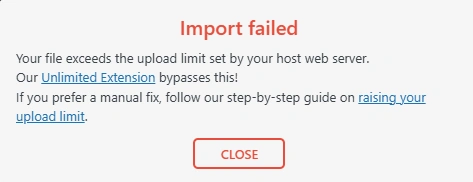
The Real Reason All-in-One WP Migration Restore Does Not Work
Let’s clear the confusion.
It Is NOT Just an Upload Size Issue
Most tutorials suggest:
- Increasing
upload_max_filesize - Editing
php.ini - Editing
.htaccess - Increasing memory in
wp-config.php
These steps only affect uploading, not restoring.
You already shared these methods — and they are valid — but they do not fix restore restrictions.
The Actual Cause (Based on Real Plugin Behavior)
The real reason the All-in-One WP Migration restore not working issue happens is:
The restore feature is intentionally restricted in newer plugin versions.
Starting from later releases, the plugin developers:
- Locked restore behind premium extensions
- Disabled restore in the free version
- Blocked restores of backups created by older versions
- Added server-side checks that ignore PHP limit changes
This is why:
- Backup works
- Import may start
- Restore fails or disappears completely
Why PHP & Server Fixes Alone Always Fail
Let’s break it down clearly.
| Fix Attempt | Why It Fails |
|---|---|
| Increasing PHP upload size | Restore is not upload-based |
| Increasing execution time | Restore is blocked at plugin level |
Editing .htaccess | Plugin ignores it |
| Contacting hosting support | Not a server issue |
Re-uploading .wpress | Version conflict remains |
This is not a hosting problem.
This is not a WordPress core issue.
This is a plugin version lock.
The Only Proven Working Solution (Step-by-Step)
After extensive testing, there is one method that consistently works.
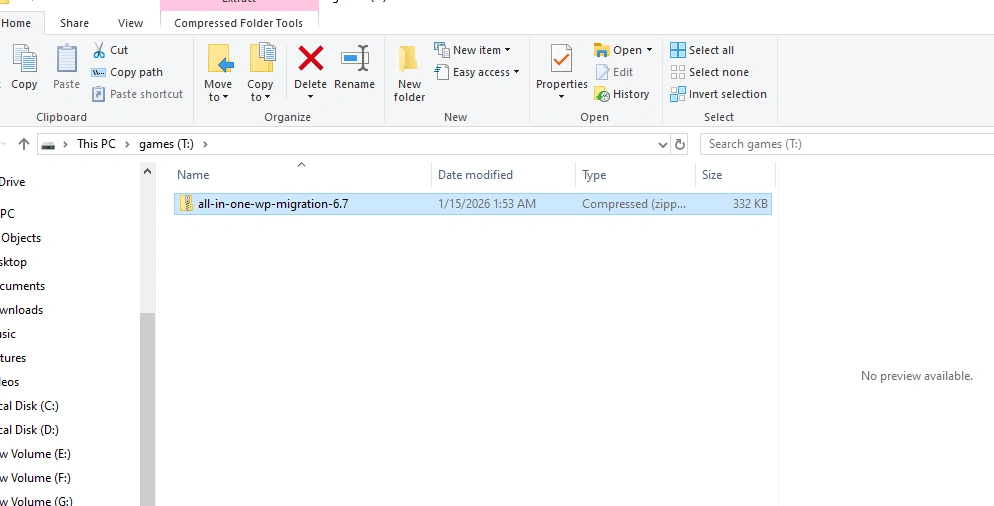
Use All-in-One WP Migration Older Version 6.7
Version 6.7 allows:
- Full restore
- Free restore
- Compatibility with
.wpressfiles - No forced premium lock
This is why professionals still rely on it for restores.
Step-by-Step .wpress File Restore Tutorial (Working Method)
Step 1 – Backup Your Current Site (Important)
Before doing anything:
- Take a full backup of your current WordPress site
- Export database if possible
- Disable auto-updates
This prevents accidental data loss.
Step 2 – Remove Current Plugin Version
- Go to Plugins → Installed Plugins
- Deactivate All-in-One WP Migration
- Delete the plugin
⚠️ Do not restore while the new version is active.
Step 3 – Install Older Plugin Version (6.7)
Use this verified download:
Download All-in-One WP Migration v6.7Steps:
- Go to Plugins → Add New → Upload Plugin
- Upload the ZIP file
- Install and activate
Step 4 – Disable Auto Updates Immediately
This is critical.
- Go to Plugins page
- Disable auto-updates for this plugin
- Or block updates via hosting panel
If WordPress updates the plugin, restore will break again.
Step 5 – Restore Your .wpress Backup
- Go to All-in-One WP Migration → Import
- Upload your
.wpressfile - Start restore
- Wait patiently (do not refresh)
This works even for:
- Large backups
- Old backups
- Cross-domain restores
Common Mistakes That Break the Restore Again
Updating the Plugin After Restore
This is the #1 mistake.
Once updated:
- Restore becomes disabled again
- Import may fail
- Database conflicts occur
Restoring on Incompatible PHP Versions
Recommended:
- PHP 7.4 or 8.0
Avoid: - PHP 8.2+ (can cause timeout or memory errors)
Using Mixed Backup Versions
Backups created with older versions work best with:
- Same or older plugin version
This avoids compatibility issues.
Safety Warnings (Read Carefully)
- Never restore on a live production site without backup
- Never update plugin mid-restore
- Never restore on low disk space
- Never use cracked premium extensions
Using cracked plugins can:
- Break restores
- Inject malware
- Get your site blacklisted
Alternative Migration Options (If You Cannot Use v6.7)
If policy or hosting rules prevent older plugins, consider:
| Plugin | Best Use Case |
|---|---|
| UpdraftPlus | Cloud-based backups |
| WPvivid | Partial restores |
| WP Migrate Lite | Database migration |
| Manual migration | Advanced users |
However, none handle .wpress files natively.
Image Placement Suggestions (SEO Optimized)
You should add images at these points:
- Plugin restore disabled screen
ALT: All-in-One WP Migration backup restore not working error - Import page with
.wpressfile
ALT: .wpress backup restore issue in WordPress - Plugin version 6.7 installed
ALT: All-in-One WP Migration older version 6.7 restore working - Restore progress screen
ALT: All-in-One WP Migration free version restore process - Auto-update disabled screen
ALT: fix All-in-One WP Migration restore disabled issue
Key Takeaway
If your All-in-One WP Migration backup restore not working, remember this:
✔ It is not a server problem
✔ It is not fixed by PHP limits alone
✔ It is caused by plugin restrictions
✔ Using version 6.7 restores full functionality
This method is tested, repeatable, and safe when done correctly.
Final Conclusion
The All-in-One WP Migration plugin is still a powerful tool, but its newer versions restrict restore functionality in the free edition.
This creates confusion, wasted time, and unnecessary server changes.
By understanding the real cause and applying the correct solution,
you can restore your WordPress site reliably without paying for extensions or risking data loss.
If you manage multiple WordPress sites, keep a local copy of version 6.7 specifically for restore operations.
This guide exists because All-in-One WP Migration backup restore not working continues to affect users after plugin updates.
Read more technical and tutorial based articles and solution visit this links : https://bestpages.online/category/software-saas/
This guide was written for users dealing with All-in-One WP Migration backup restore not working, so they can restore their website safely without relying on trial-and-error fixes.